Grading in Moodle
How to assign grades?
- The assignment that is to be graded should be clicked in the course page in order to display “Grading Summary“ (Figure 1).

Figure 1 - “Grading Summary” page (Figure 2) shows how many students submitted their assignments and how many assignments need to be graded. “View/grade all submissions” button should be clicked to access to list of people who submitted their assignment.

Figure 2 - Assignment status of the people for assignment is shown in “Status” column. “Edit” button that is in the same row with user name should be clicked. After that, “Grade” button should be clicked to reach grading page of the user.

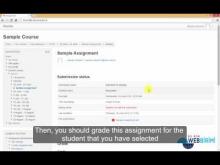
Figure 3 - At the top of the grading page, submitting status is shown. At the bottom of the page, “Grade” from can be displayed (Figure 4). After finishing grading and feedback processes “Save Changes” button should be clicked in order to complete process.

Figure 4 - Result Screen:

Figure 5
------------------------------------------------------------------------
Watch Video Tutorial
How to define grading categories?
- First click "Grades" under "Course Administration" (Figure 1)

Figure 1 - Then, change "Grading report" to "Categories and items" under "Setup" section of the top drop down selectbox (Figure 2).

Figure 2 - After that, click "Add Category" button (Figure 3).

Figure 3 - On this page enter the "Category name". Under "Parent category" section choose "Parent category" (Figure 4). Additionally you can click "Show more" and choose to exclude lowest X grades. (Figure 5)

Figure 4
Figure 5 - When you defined grading category, it appears on "Adding assignment" and "Adding quiz" pages under "Grade" tabs. When you are creating an assignment or quiz select the category you wanted to relate. (Figure 6)(Figure 7)

Figure 6
Figure 7
How to define grading items?
- First click "Grades" under "Course Administration" (Figure 1)

Figure 1 - Then, change "Grading report" to "Categories and items" under "Setup" section of the top drop down selectbox (Figure 2).

Figure 2 - After that, click "Add grade item" button (Figure 3).

Figure 3 - On this page enter the "Item name". Under "Parent category" section choose "Parent category" (Figure 4).

Figure 4
How to manage grading categories and items?
- First click "Grades" under "Course Administration" (Figure 1)

Figure 1 - Then, change "Grading report" to "Categories and items" under "Setup" section of the top drop down selectbox (Figure 2).

Figure 2 - In order to change the weight of an item or category, click on the checkbox on the left side of the weight area. Then click "Save changes". (Figure 3).

Figure 3 - In order to change the category of an item or category, click on the checkbox at the enf of the line, under select area. And change "Move selected items to" selectbox's value to the category you wanted. Then click "Save changes". (Figure 4).

Figure 4 - In order to edit an item or category, click on the "Edit" link on the same line. (Figure 5).

Figure 5