How to Embed Recordings into Moodle?
Embedding video in Moodle with the Panopto icon
-
Navigate to the location in Moodle where you would like to embed a video.
-
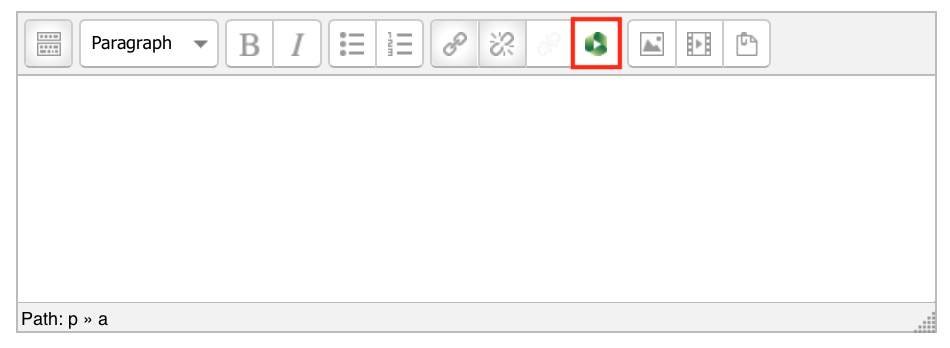
In any text editor where embedding video is enabled, click on the Panopto icon.
Note: Depending on your editor and device, the Panopto icon might appear in a different position.
-
An 'Insert from Panopto' window will appear, you can:
Choose an existing video from Panopto
-
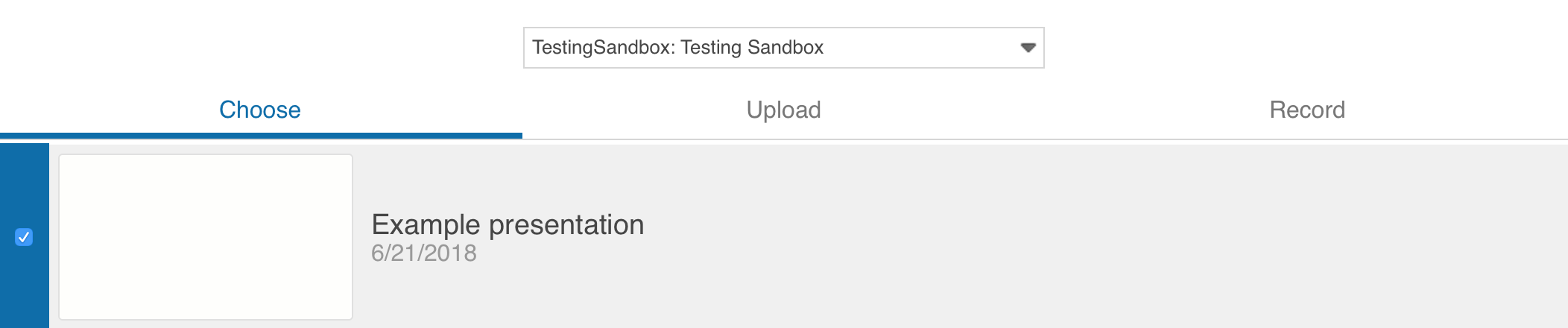
From the Insert from Panopto window, select the Choose tab.
-
Browse through your available folders with the dropdown list. Select the folder that contains the video you would like to insert.
-
Select your video by ticking the check box.
-
Click Insert at the bottom of the window.
Upload an existing video
-
From the Insert from Panopto window, select the Upload tab.
-
Drag and drop up to 100 video or audio files at a time or click the dashed box to browse your computer for files.
-
Click Insert when you are done and the recording will be published.

Note: Panopto will use the file name as the session name, but you can rename this while the content is uploading.
Record video directly into Moodle
-
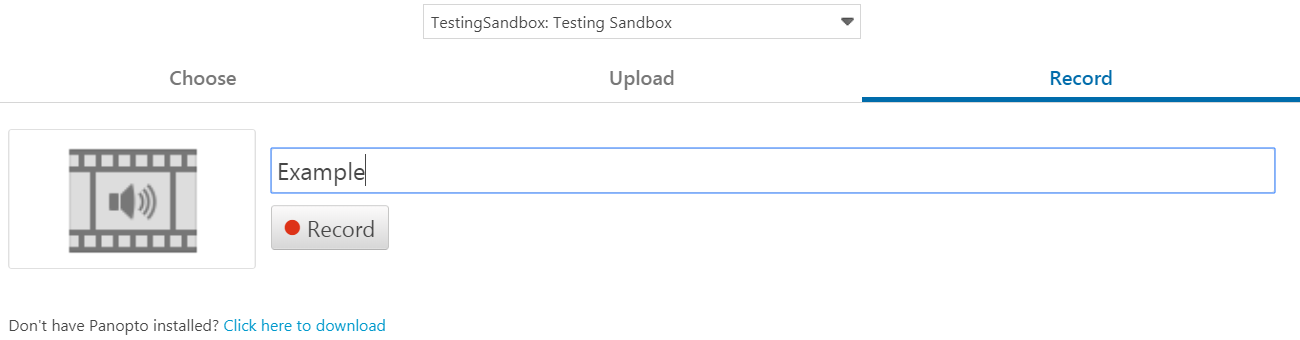
From the Insert from Panopto window, select the Record tab.
-
Select a folder for your video to be uploaded to. By default, this will be the Moodle folder you launched the Insert from Panopto window from. You can change the location of your video later at any time.
-
Enter a name for your recording. You can change this at any later stage.
-
Click Record. This will launch the Panopto Recorder.