Forums & Quizzes
How to create a Moodle Forum?
- In order to activate editing tools, “Turn editing on” should be selected in the administration panel after logging into the Moodle system (Figure 1). Administration panel is located on the left bottom corner of the page.

Figure 1 - In the course page, “+Add an activity or resource” button, which is located at the top of the page or below the related week or topic should be clicked.The link which located at the top of the page

Figure 2The link below related subject
Figure 3 - At the left part of popup menu (Figure 4), “Forum” button and then “Add” button are clicked.

Figure 4 - Changes that belong to forum are made on the popup window and “Save and display” button is clicked in order to complete the process.
------------------------------------------------------------------------
Watch Video Tutorial
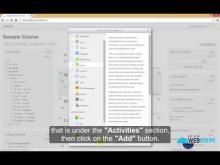
How to reply to a Forum topic?
- Forum link should be clicked on the course page to access the forum.
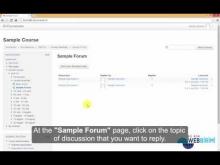
Note : Students cannot reply to "News Forum". - To answer a discussion, the topic of the discussion should be clicked. (Figure 1).

Figure 1 - “Reply” link, which is on the lower right of the discussion box, should be clicked to write an answer. (Figure 2).

Figure 2 - On the next screen, the form should be filled and then “Post to forum” button should be clicked. The fields that have red * sign next to them are required fields (Figure 3).

Figure 3
------------------------------------------------------------------------
Watch Video Tutorial
How to create group forums?
- First we need to create groups. In order to create groups first click the "Groups" lik on the left menu. ( Figure 1 )

Figure 1 - Then click "Create group" link. ( Figure 2 )Link on top of the page

Figure 2 - Enter the "Group name" and save. Repeat this step for all groups. ( Figure 3 )

Figure 3 - Then on the Groups page select the group that you want to add user to and click "Add/remove users" link. ( Figure 4 )

Figure 4 - On the right side under "Potential members" select the users you want to add to group and click "Add" link. When you are done click "Back to groups" and repeat this step for all groups. ( Figure 5 )

Figure 5 - Click "Groupings" link and click "Create grouping". ( Figure 6 )

Figure 6 - Enter "Grouping name" and save. ( Figure 7 )

Figure 7 - Click "Show groups in grouping" link shown in the figure. ( Figure 8 )

Figure 8 - On the right side under "Potential members" select the groups you want to add to grouping and click "Add" link. When you are done click "Back to groupings". ( Figure 9 )

Figure 9 - Create forum following steps in "8. How to create a forum?" except on the "Adding a new Forum" page under "Common module settings" select "Group mode" as "Seperate groups" if you do not want the group forums to see each other or select "Visible groups" if you want the group forums to see each other but can only post on their own forums. Then select the "Grouping" you created on previous steps and save. ( Figure 10 )

Figure 10
How to create a quiz?
- In order to activate editing tools, “Turn editing on” should be selected in the administration panel after logging into the Moodle system (Figure 1). Administration panel is located on the left bottom corner of the page.

Figure 1 - “+ Add an activity or resource” link, which is located on top of the page of the course or below the related week or topic is selected (Figure 2 and Figure 3).Link on top of the page

Figure 2Link below of a topic
Figure 3PS: If no date is specified for the assignment, link on top of the page may be used.
- “Quiz” link, which is located on the left side of the opening window (Figure 4), is selected and “Add” button is clicked. (Figure 4)

Figure 4 - Then enter the quiz name and click "Save and display" (Figure 5)

Figure 5 - Then click "Edit quiz" button (Figure 6)

Figure 6 - Click "Add" link to add questions. Additionally you can decide weather the questions will be shuffled. (Figure 7)

Figure 7 - Here you can create a new question, choose a question from the question bank or you can add random questions from a category in the question bank. (Figure 8) (Figure 9)

Figure 8
Figure 9
How to add questions to question bank?
- First click "Question bank" under "Course Administration" (Figure 1)

Figure 1 - Then, click "Create a new question" and choose the question type you wanted to create. (Figure 2) (Figure 3)

Figure 2
Figure 3 - You can use those questions in Quizes.